
Problem
Some organizations require the ability to support different branches or teams in their Advisor360 Express Company.
Solution
Access Control allows you to create Groups within your company for the purpose of supporting your sales teams, partners, branches, offices, and more! When you enable Access Control in your company, all created agreements will be associated with a specific Group. Access Control Groups (ACGs) allow you to limit which members of your organization are able to view agreements related to each channel, and who is able to manage the members of the groups. You will also be able to filter reporting to gain increased visibility of your Groups and their operations activities.
Table of Contents
- Problem
- Solution
- Table of Contents
- Visual Overview
- Should I enable Access Control in my Advisor360 Express Company?
- What Roles are available?
- How do I manage my Access Control Groups?
- How do I assign an Access Group to an existing agreement?
- How do Group Members select their Access Group when launching new agreements?
- How do I manage the agreement types that Group Members have access to launch?
- What happens if I use the Publishing API and I want to enable Access Control?
- How do I enable Access Control in my company?
Visual Overview
Should I enable Access Control in my Advisor360 Express Company?
Access Control is recommended for all companies that want the ability to provide a unique experience for specific Groups. You can control which agreement types are visible to each Group, get reporting data on each Group, and even enable Managers for each Group who are able to add/remove group members and assign member roles.
What Roles are available?
Primary roles within an Access Control Group:
-
Publisher (Member) - Members are able to create agreements and assign them to a specific Access Group. Publisher Group Members can only see items they create or items that are shared with them using sharing features such as workgroups.
-
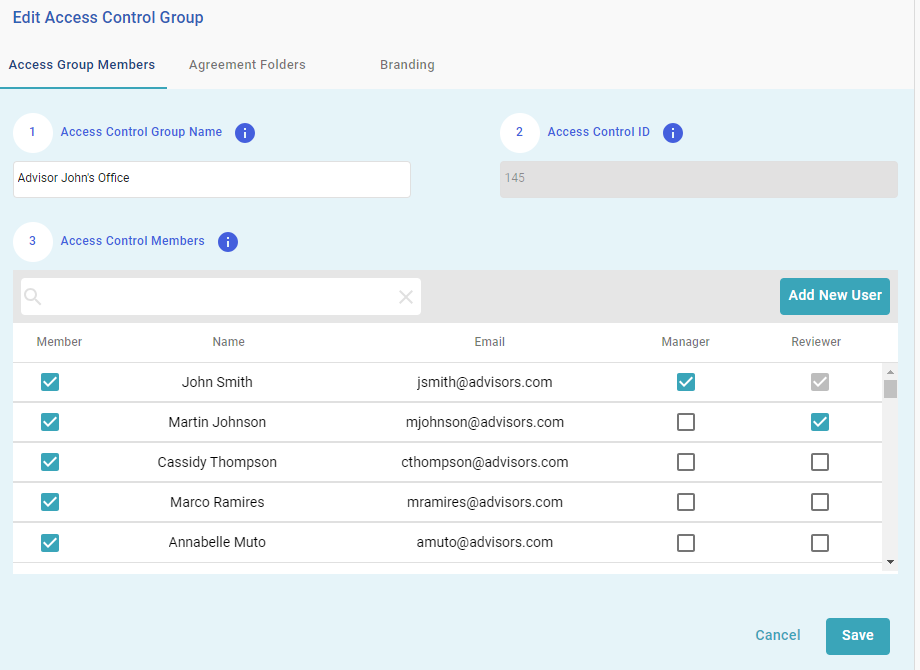
Manager - Group Managers are able to view all agreements and scorecards linked to their group(s). They can also add/remove company users to their groups and change the role(s) of their group members in the Access Control Manager.
- Reviewer - Group Reviewers are able to view all agreements linked to their group(s). They cannot add/remove/modify other group members in the Access Control Manager.
The existing user role ‘Company Administrator’ will still be able to see all agreements associated with all of your Groups, and also manage the members/roles of each Group. Only Company Administrators are able to create new Groups.
How do I manage my Access Control Groups?
To manage your Access Control Groups, you must be a Company Administrator. In the Administration menu, select the ‘Access Control Manager’.
How do I assign an Access Group to an existing agreement?
When Access Control is enabled in your company, click the checkbox on an agreement in any status to show the Action Bar and click the Edit Access Group button.
Using the checkboxes, select the Access Groups to assign and click Update.
The Access Control Group column in the workspace is automatically updated to reflect changes in assignment.
How do Group Members select their Access Group when launching new agreements?
When Access Control is enabled in your company, Group Members will see an option in the Launcher to select a Group before they create a new agreement. If a Publisher belongs to more than one Group, they will have to make a selection from the dropdown menu.
Publishers must belong to at least one Group to launch an Agreement.
How do I manage the agreement types that Group Members have access to launch?
Within the Access Control Manager, click the Agreement Folders tab to select which folders each Group should have access to in the Launcher.
How would a Manager add or remove Access Control Group users?
Depending on your company's settings, Managers can add new users to their own Access Control Groups. In the Administration menu, select the ‘Access Control Manager’ and click the Add User button within your group.
Users added through this method are Publishers by default and can be modified further by a Company Admin if required.
To remove a user, a Manager can uncheck the checkbox beside that user's name. If the user is a Publisher and does not belong to any other groups, the dialog below will appear. If "Remove" is selected, the user can continue to log into the Workspace and access their own previously published transactions but no longer have access to launch new transactions for the Access Control Group. The "Revoke" option will downgrade the user from Publisher to User and lose access to the Workspace.
Can we apply branding for Access Control Groups?
Yes! We currently support e-mail logo branding for Access Control Groups.
Within the Access Control Manager, navigate to the Branding tab for an Access Control Group and click Enable email branding to upload a logo.
Once this is enabled, emails sent by this Access Control Group will be branded with this logo in place of the default Company logo.
What happens if I use the Publishing API and I want to enable Access Control?
If you enable Access Control, you have the option to send a new parameter accessControlGroupIds in your publishing request to assign your agreements to an Access Control Group.
If you enable Access Control and do not update your calls to send this parameter in an API request, you will not receive an error. Existing calls will work and simply launch transactions without an Access Control Group assigned.
The accessControlGroupIds can be retrieved in the Access Control Manager UI by selecting an existing Access Group:
The Access Control ID or Group ID is auto-created each time a new Access Control Group is created.
Here is a sample post with the new parameter highlighted.
Sample: "accessControlGroupIds": [28]
{
"modelId": 28,
"accessControlGroupIds": [28],
"fieldValueMap": {
"Business_DBA":"Space Goat Productions",
"Business_LegalName":"Space Goat Productions",
"Owner1_Phone":"2145551212",
"Business_DBAPhone":"(602) 518-4357",
"Owner1_Email":"103ur@gmail.com",
"Business_ProductServiceDescription":"Gambling Loan Credit",
"Business_Website":"http://http://www.spacegoatproductions.com/ ",
"Business_TypeOfBusiness":"Corporation",
"Business_TaxID":"637463746",
"Business_MailingCountry":"US",
"Business_MCC":"7392",
"Business_LocationZipPostal":"98225",
"Business_LocationStateProvince":"WA",
"Business_LocationCity":"Bellingham",
"Business_LocationAddress1":"1007 N Forest St Ste A",
"Business_MaximumTicketAmount":"344.00",
"Business_MonthlySalesVolume":"250000.00",
"Business_AverageTicketAmount":"50",
"Business_AverageDaysDelivery":"0",
"Business_TypeOfOwnership":"Sole Proprietorship"
}
}
How do I enable Access Control in my company?
Please submit a support ticket to supportexpress@advisor360.com or consult your CSM (Customer Success Manager) to have this feature turned on!
Three optional configurations are available for Access Control Groups, be sure to review and discuss these options with your CSM to determine the best fit for your organization.
-
Unrestricted Publishing - By default, a Publisher must belong to an Access Control Group to publish an agreement. Enabling Unrestricted Publishing will override the default behaviour and allow Publishers to publish without an Access Control Group assigned. Publishers & Company Admins can still assign/unassign Access Control groups on a published transaction.
-
Restrict Manager Admin Capabilities - By default, an Access Control Group Manager has access to administer Access Control Groups, modify users, and add new users. Enabling this restriction will reduce a Manager’s capability to admin capabilities for their own Access Control Groups without the ability to add new users or edit other Access Control Groups.
-
Restrict Approvals - By default, members of Approval departments can approve transactions regardless of Access Control Group. Some scenarios call for approvals to be limited by Access Control Group to ensure that approvers are not able to approve on behalf of another group. When this setting is enabled, Publisher-level approvers are limited to approvals within their own Access Control Groups. Company Admin-level approvers can approve across all Groups.
Comments
0 comments
Please sign in to leave a comment.